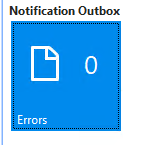
Approval notifications
Via the Inform User about Approval field in Business Central, you can specify how and when the user will receive notifications about the status of the expense document they submitted to Continia Online for approval, and what type of notification is sent.
Note
Prior to version Expense Management 10, the field, Inform User about Approval. was called Send Method.
There are three options available from the dropdown menu of this field: Never, Instantly, and Scheduled. These options control whether the user receives information about the approval of an expense document instantly or at a specified time. This setting applies to status notifications in both the Continia Expense Mobile App and in the Continia Expense Portal.
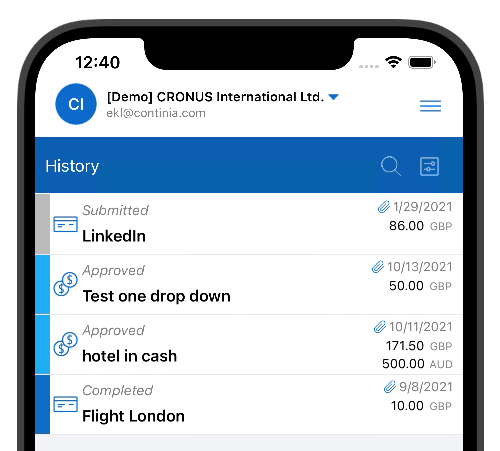
Never - the status of the expense approval entry in the Expense Mobil App never updates beyond Submitted, even though it may have been approved or completed.
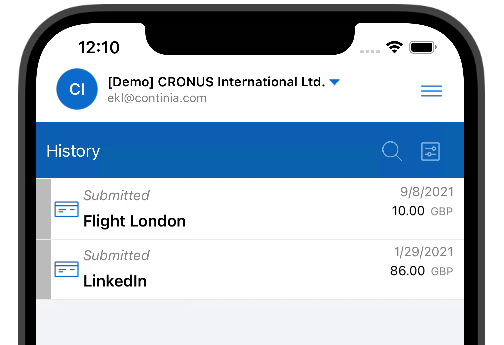
Instantly - the status of the expense approval entry is updated as soon as there is anything to update (including status changes such as Approved, Completed). When sending notifications instantly, the approver must wait until the notification is sent. At which point the information about the approval of the expense is sent to Continia Online immediately. This process requires an extra connection to Continia Online and therefore might be considered too slow for the approver.
Tip
If the approval process is taking longer than expected, change the Inform User about Approval field to Scheduled.
Scheduled - updates to Continia Online for the expense approval entry are delayed until a specified time. This creates a notification in the Notification Outbox for each document. Later (when scheduled) an update for that document is sent to Continia Online. The functionality of the Expense App then creates a background session and run the process asynchronously.
Exceptions
The functionality is made in such a way that every time a new document approval state is changed, it will try to create a Job Queue entry and attempt to send all of the notifications in the system. If approvers don't have permissions to add Job Queue entries, consider manually adding one for code unit 6086544 "CEM Send Release Notif. -Batch".
To remain up to date, pay attention to the Notification Outbox queue.