Editing payment proposals
The Payment Proposals page shows you a list of payment proposals that have already been created, as long as they have not yet been posted. To learn how to create payment proposals, please refer to the Creating payment proposals article.
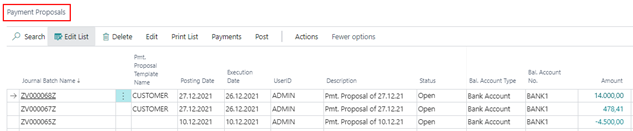
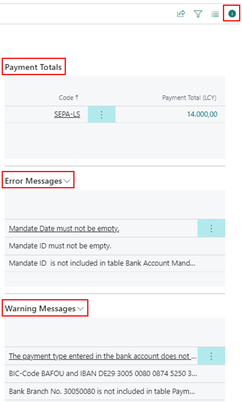
In the list view of the open payment proposals there are some info boxes on the right side which can be shown or hidden. In these boxes, information about the payment amounts (in LCY) of a payment proposal and the respective payment type per payment amount is displayed. Furthermore, fact boxes are available for possible error messages and warnings for each payment proposal. A displayed error in the payment proposal processing prevents further processing. A warning, on the other hand, is for information purposes only.
From the amount fields of the payment proposal, clicking on the respective amount will take you to the overview of the associated payment proposal cards.
Reports within the scope of the Payment Proposals
To access the available reports:
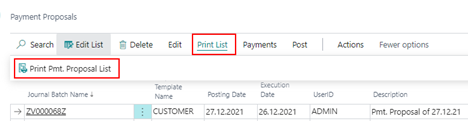
- Go to Print List > Print Pmt Proposal List
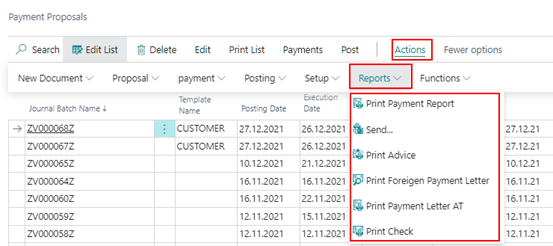
- Alternatively, go to Actions > Reports.
Print Pmt. Proposal List
This menu item allows you to print a payment proposal list.
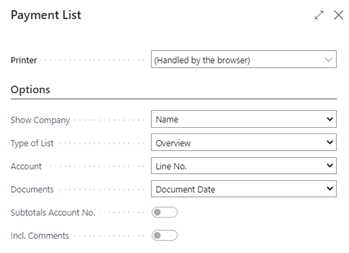
The following table describes the available fields in the Options section:
Print Payment Report
Via this menu item, you can print the payment report of the voucher less data medium exchange, which contains the control totals of the respective IBAN and SWIFT codes, as well as further information about the recipient bank and the purposes of use. You can also select a sorting here via the "Account" field.
Send Advice
This function can be used to execute the automatic dispatch of payment advice. Depending on the settings on the account, the document printout, fax printout, or e-mail dispatch is started.
Print Advise
Via this menu item, you can print the created payment advice of a payment proposal. For this purpose, the payment advice report ID 5157893 should have been set up in the export setup under the item "Reports". Using the report options, you also have the option of exporting the payment advice notes to Excel. Via the option "Print Fax No.", the fax number of the customer/vendor that exists in the payment advice header is printed at the top left of the report. The "Print E-Mail" option prints the e-mail address information stored in the respective person account on the payment advice note. Furthermore, existing entry remarks can be printed below the respective item. The "Show Document No." selection specifies which document number field will be printed in the payment advice.
The language code of the person account is transferred to the payment proposal header so that ADVISES can be printed in different languages.
Exterior Pmt. Acc. Letter
This menu item allows you to print the required file accompanying notes of the payment proposal in the format of foreign payment transactions, if required.
Edit menu on the Payment Proposals
In the list of open payment proposals, additional menu items are available. Under "Edit" you can choose:
- Payment Headers - a list of the payment headers belonging to the selected payment proposal, the payment overview. The payment headers contain data that is transferred to the bank. These are e.g. the payee, the orderer party, the bank details, and the payment amount.
- Payment Lines - a list of the payment lines belonging to the selected payment proposal. The payment lines contain the open entries that will be paid or collected over the entire created payment proposal. The details about the open entries are transferred to the bank in the payment notes.
- Payment Proposal Card - the associated payment proposal cards of the individual payment headers. There you can view the payment proposals and make changes on various tabs as long as the payment proposal has the status "Open".
Actions/Functions menu on the Payment Proposals
Overview per Bank Account - The payment overview per bank shows the list of current payments of a payment proposal, where you can change the orderer bank for certain selected payments. A payment proposal could thus be divided among different orderer banks.
Overview per Payment Type - The payment overview per payment type shows a list of the current payments (payment headers) of the selected payment proposal with possibly different payment types per payment header. It is now possible to divide the payment headers contained in a payment proposal among several payment proposals. In this way, one payment proposal is generated for each payment type.
Delete all not payable entries - This menu item allows you to delete all entries of a payment proposal that:
- are not to be paid (no Application ID is set) or
- cannot be paid (there is an error text in the payment proposal header)
Please note that when generating the entries, all entries of the payment proposal that are not to be paid are automatically deleted by the system.
Refresh - Via this menu item you have the possibility to update a selected payment proposal. This will delete the entries marked for payment from the payment proposal that have already been cleared by other postings after the payment proposal has been created. Or the entries marked for payment in the Payment amount field will be updated to the current remaining amount if they have been partially cleared by other entries after the payment proposal was created.
Actions menu item/New Documents and Actions/ Proposal to the Payment Proposals
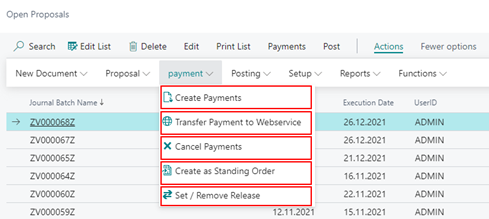
Actions menu item/payment to the Payment Proposals
Actions menu item/Posting to the Payment Proposal
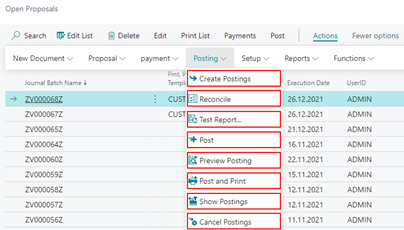
- Create Postings and Show Postings - Creates the necessary posting lines of a payment run and the system sets the status of the payment proposal to "Posting in Process". This function is only available when the respective payment proposal is in the "Payment Done" status. After calling the function, you will be asked if you want to generate the postings. The generated entries are placed in the Ext. Cash Receipt Journal. Via the menu path Actions > Posting > Show Postings, this ledger sheet opens, and the generated posting records of a payment proposal can be viewed. The entries created for a payment proposal can be viewed. The system assigns a journal batch name based on the number series for the payment proposals stored in the setup. In addition, the balance account is inserted for each payment type code based on the setting in the Payment Posting Setup. In the further course of the process, however, the posting is not made in the Ext. Cash Receipt Journal, but via the "Post" menu item in the payment proposal overview. When creating the postings, all the entries of the payment proposal that are not to be paid are automatically deleted by the system. When posting a payment proposal, in addition to the document number, the external document number of the bank posting line is also filled. The payment proposal number is returned by the bank in the account statement. Therefore, in the automatic G/L ledger entry clearing (for G/L open entries), the external document number of the G/L ledger entry can now be uniquely accessed.
- Cancel Postings - This function is available if the status of the payment proposal is "Posting in Process". Via the corresponding menu item, you can cancel the generated postings of a payment proposal. The generated postings will be removed from the Ext. Cash Receipt Journal, and the status of the payment proposal will be reset to "Payment Done" by the system.
- Show Postings - This function is also available if the status of the payment proposal is set to "Posting in Process". Using the corresponding menu item, you can access to the corresponding Ext. Cash Receipt Journal to view the generated postings. However, the posting is not made in the Ext. Cash Receipt Journal, but via the "Post" function in the payment proposal overview.
Post
Once the postings of a payment proposal have been generated, you can use the "Post" button to perform the usual posting procedure.
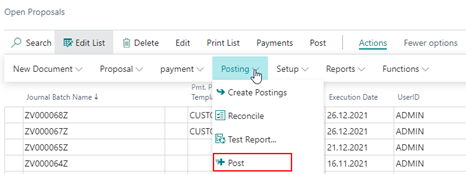
Payment Lines
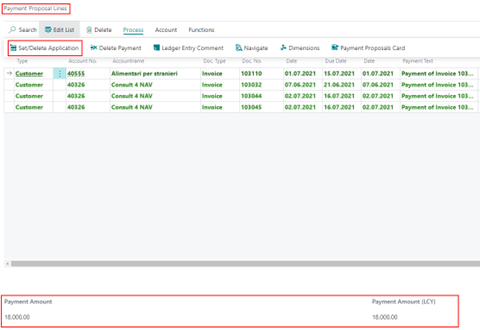
Via the menu path Edit > Payment Lines, you get an overview of all payment lines of the currently selected payment proposal. In the lower part of the page there is a display of the sum of the payment lines marked for clearing. Also from the payment lines it is possible to set the clearings directly via "Set/Delete Application". The display of the total changes accordingly.
Manually extending payment proposals
To manually extend an existing payment proposal:
- Go to Actions > Proposal > Create > Customer Proposal - In this case, various options can be redefined. The balance account (payment of account type and account number), the posting date, and the execution date cannot be changed.
- Go to Actions > Proposal > Create > Vendor Proposal - In this case, various options can be redefined. The balance account (payment of account type and account number), the posting date, and the execution date cannot be changed.
- Go to Actions > New Document > Create Payment Proposal - you can manually add a new blank payment proposal card to the list of payment proposals.
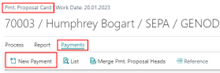
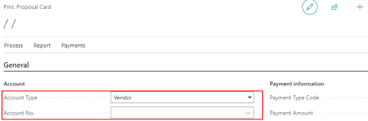
In an already existing payment proposal, you can insert a new record at the header level of the payment proposal card using the Payments/New Payment function. This is how you create an empty payment proposal card. In the empty "General" tab you need to fill the Account type and Account number fields:
Account Type and Account Number
In this field you enter the desired account type for which you want to create a new payment proposal card (G/L account, customer, vendor, bank account, employee). Thus, the field contains the account type of the payer or the payee. The field below it will be filled with the corresponding account number of the payer or the payee. After entering an appropriate account, you can manually add the rows to the payment proposal card.
However, adding payment lines is possible only for the account number entered in the payment proposal card header. Standing in the lines, you can add a new record to the lines at any point using the Manage/New Payment function.
Note
In case of the selected "Bank" account type, you can initiate a money transfer between your own bank accounts (orderer bank and receiving bank) using a payment proposal.
You must fill in the following fields: