Creating and editing payment proposals using a template
This article explains how to create and edit payment proposals if the necessary master data is available in the system.
Payment proposal templates
The Payment Proposal Templates menu item allows you to create a payment proposal from existing templates or create a new template directly from the Role Center.
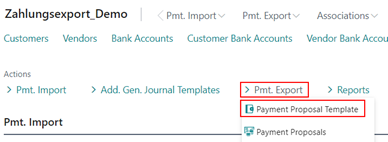
The most convenient way is to create a new payment proposal template directly from a payment proposal. For details, please refer to the Creating payment proposals article. However, it is also possible to define a payment proposal template manually.
The following table describes the field entries for creating a payment proposal template:
On the payment proposal templates page, appropriately selected templates can also be deleted.
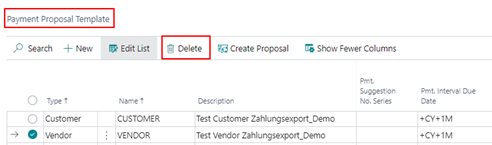
Creation of Payment Proposal from Payment Proposal Template
First of all, it is necessary to set up and check the created templates. A debit-side or credit-side payment proposal to be created can be saved as a template accordingly via the Create Pmt. Proposal and Save as Template functionality.
If templates on payment proposals have been generated, they should be checked in relation to the intervals to be performed.
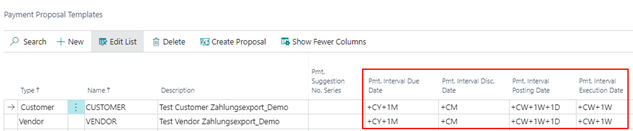
According to these intervals, the corresponding date values are calculated when creating a payment proposal. If the intervals are not set up, the values from the payment export setup in the Create Pmt. Proposal tab or the respective working date apply.
If the payment proposals are to be processed automatically via a task queue, the following values must be set up:
- Recurring Method
- Recurring Frequency
- Next Call
The information is processed in a corresponding task queue. The system can independently determine whether a payment proposal needs to be executed again or not.
In the Recurrence Method field, you can choose between the Date Formula or Target Calendar options. If you use the Target Calendar, the system will automatically find the next debit or credit transfer date for customers and vendors according to the Target Calendar setup.
A date formula is used according to the user setup in the payment proposal. If you select the Date formula option, you should also fill in the Recurrence Frequency field accordingly. For example, if a payment proposal is to be created weekly using a specific template, set up +1W.
The Next call field is automatically filled after the creation of the corresponding payment proposal, according to the set up recurring frequency. This field is then decisive for the automatic creation via the task queue. The user has the possibility to override this field manually.
Payment Proposal as Batch
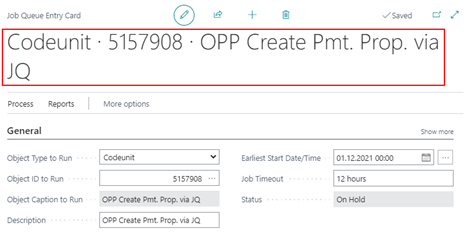
A code unit that processes all due payment proposal templates will be provided to you by OPplus for a corresponding batch run.
In the ID area of OPplus the code unit 5157908 - OPP Create Pmt. Proposal via JQ is used. If you include this codeunit in the job queue, all payment proposals due according to the payment proposal template will be executed. For this, the recurring method must be filled in as described and the work date must be greater than or equal to the value specified in the Next Call field.
Email Notification for Payment Proposal Templates
You also have the option to define a user in a payment proposal template who should be notified when a payment proposal has been generated via this template.
This functionality is also used when the payment proposal is processed through a job queue.
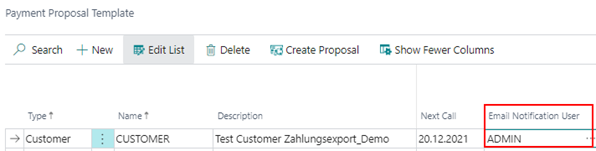
Depending on the Business Central version, it may be necessary to set up the SMTP setup in order to use this function. If this setup is not available, the user will receive an error message directly upon selection. In a SaaS environment, corresponding e-mail accounts should have been created via the standard Email Notification User function.
From the respective selected user, the following field is used for the generated e-mail:
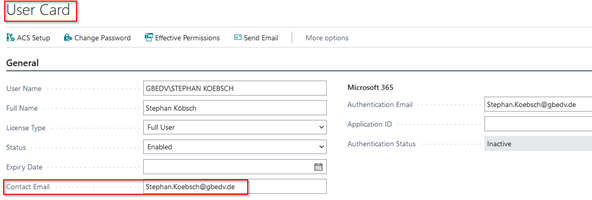
The e-mail generated by the creation of the payment proposal is a system e-mail, the content of which is not to be set up.