General introduction to OPplus Payment Export
This section describes the processes and fields in the Payment Export module. For further information about the fields please use the information of the ToolTips as well as the online help for OPplus 365 for Microsoft Dynamics 365 Business Central.
The information describes the contents of the OPplus App version 18.1801
Assisted setup
In the Assisted setup of Business Central the option "Setup OPplus" is available after the installation of the OPplus App. The system will then guide you through the OPplus setup accordingly via a setup wizard.
In the first step the start page of the OPplus setup wizard appears after the execution, which has to be confirmed with "Next". On the following page the relevant data for the payment export must be entered:
The setup wizard is now finished and can be closed with "Finish". All further necessary basic settings for OPplus are automatically generated in the background. The status in the supported facility is then set to "Completed".
Setup Configuration
Via the setup configuration, it is possible to transport OPplus setup tables from one database to another or from client A to client B. The access for this can be found in the OPplus license information.
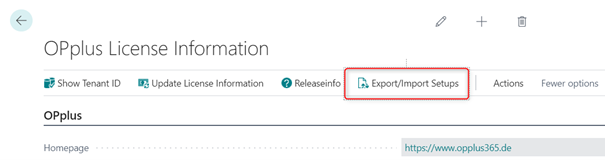
The report is divided into two parts. The upper part contains three options:
In the lower area there is the selection of export/import data according to the modules:
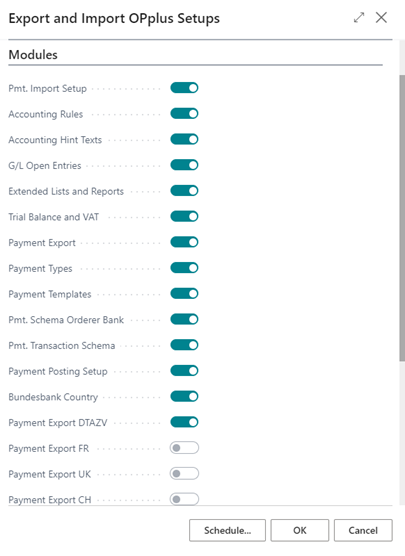
When opening the report, it is checked which modules are already activated in the license. According to the license, the individual " buttons " are then already preset. This can be overridden by the user.
With the "Import" option, all modules that have been activated in the license are set automatically. With the "Export" option, all modules that have been enabled in the license and also contain (at least) one record in the corresponding table are set automatically.
Important
The current customer license must be active in the server. The import does NOT create/edit number series.
Create Setup Data for All Companies
In the OPplus License Information window, you can create the setup data for all companies simultaneously by clicking the “Create Setup Data for all Companies“ button.
The system now starts processing all licensed modules. A message appears which needs to be confirmed by clicking “Yes“:
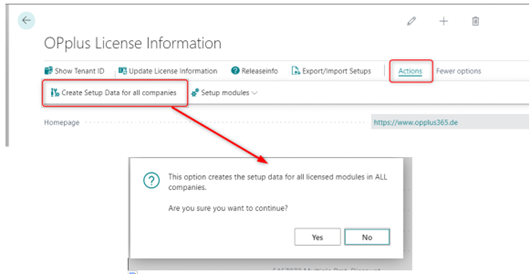
It is a prerequisite that the user has corresponding permission rights in all companies. If an error occurs, it will be displayed accordingly; if no error has occurred, you will also receive a message: The setup data for all licensed modules was generated in all companies.
DataClassification
Due to the data protection regulation, Microsoft has integrated the property "DataClassification" for each field in the database. This field must then be supplied accordingly, so that one can get the info which values are customer related.
This has been done for all OPplus fields.
In addition, we have created the possibility to use these values
- To output
- To anonymize
For this purpose, a new selection item has been added to the general menu:

This report offers the possibility to enter an account and to choose whether the data should be output or anonymized.
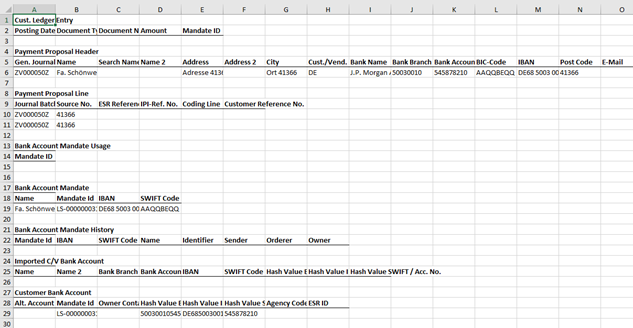
If you select the "Show Personal Data" option, an Excel list will be created containing all the data of the account.
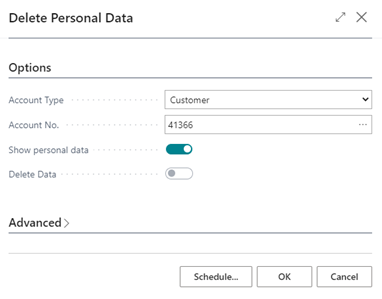
The table outputs all existing fields, even if they do not contain a value.
With the "Delete Personal Data" option, you can anonymize the values accordingly so that they can no longer be traced back to the original values. In this case, instead of the original value, the value "XXXXX" is entered in all fields. This account is then:
- No longer usable in the database
- No longer reset to the original values
If you want to delete the data, you will also receive a security check, which must be confirmed accordingly if the data is to be removed completely: This Report will garble the personal Account-Data of all OPplus Fields. Continue?
If there are any open items for the account in the system, there will be an additional security message:
There are open Entries at this Account. Continue?
Important
This has the background that you are legally obliged to keep this data for 10 years. If there are open items in the system, we assume that this period has not yet expired!
Warning
At this point we would like to point out once again explicitly that the values concerned cannot be corrected again if they have been deleted! In addition, it is possible that you delete tables with transaction data (e.g. journal lines). This can then accordingly no longer be posted!