Working with payment proposals
Payment proposals can be created in two ways:
- Automatically, using filters and options (see Creating payment proposals).
- Manually, by creating a blank payment proposal (described in this article).
This article explains how to create empty payment proposals and how to review and edit existing ones.
For more information on how to manually fill an empty payment proposal card, see the Manually extending payment proposals article.
To edit and review payment proposals
The Payment Proposals page shows all proposals that have been created but not yet posted.
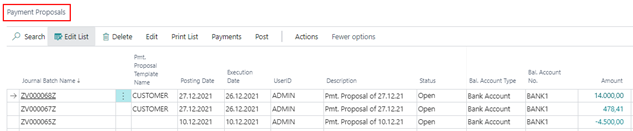
From this page, you can:
- Open and edit proposals
- Review amounts and payment details
- Navigate to related payment lines
- Delete proposals (if status is Open)
The payment proposal fields
The following fields are available in the list and card view:
Bal. Account Type and Bal. Account No. correspond to the payment account fields defined during proposal creation.
The status of payment proposals
The Status field indicates the current stage of the payment proposal:
Additional information and actions
FactBoxes and details
In the list view, additional information can be displayed on the right:
- Payment totals (in LCY)
- Payment types per amount
- Errors and warnings
Errors and warnings
- Errors prevent further processing
- Warnings provide additional information but do not block actions
Navigate to payment lines
You can access detailed payment lines directly:
- Select a proposal
- Click an amount field
This opens the related payment overview.
Delete payment proposals
You can delete:
- Individual payment proposal cards
- Entire payment proposals
Deletion is only possible when the proposal status is Open.