Adding a remittance information template
Remittance information helps payees reconcile incoming payments by detailing which invoices or accounts the payments relate to. To standardize this information, you can use remittance information templates in Continia Banking. These templates define how payment-related data, such as invoice numbers and amounts, appears in the remittance text.
This article explains how to create and customize a template. To learn how to apply a template to vendor payments, see Configuring remittance information.
To add a remittance information template
To create a template:
Search () for and select Banking Templates.
Click New to create a template, or select an existing remittance template to edit it.
Important
Do not change the default DEFREMIT-SINGLELINE. It will be automatically updated by the setup server during system updates.
On the Banking Template page, in the Type field, select Remittance Information.
In the Code field, enter a unique code. In the Description field, enter a short description that explains the purpose of the template.
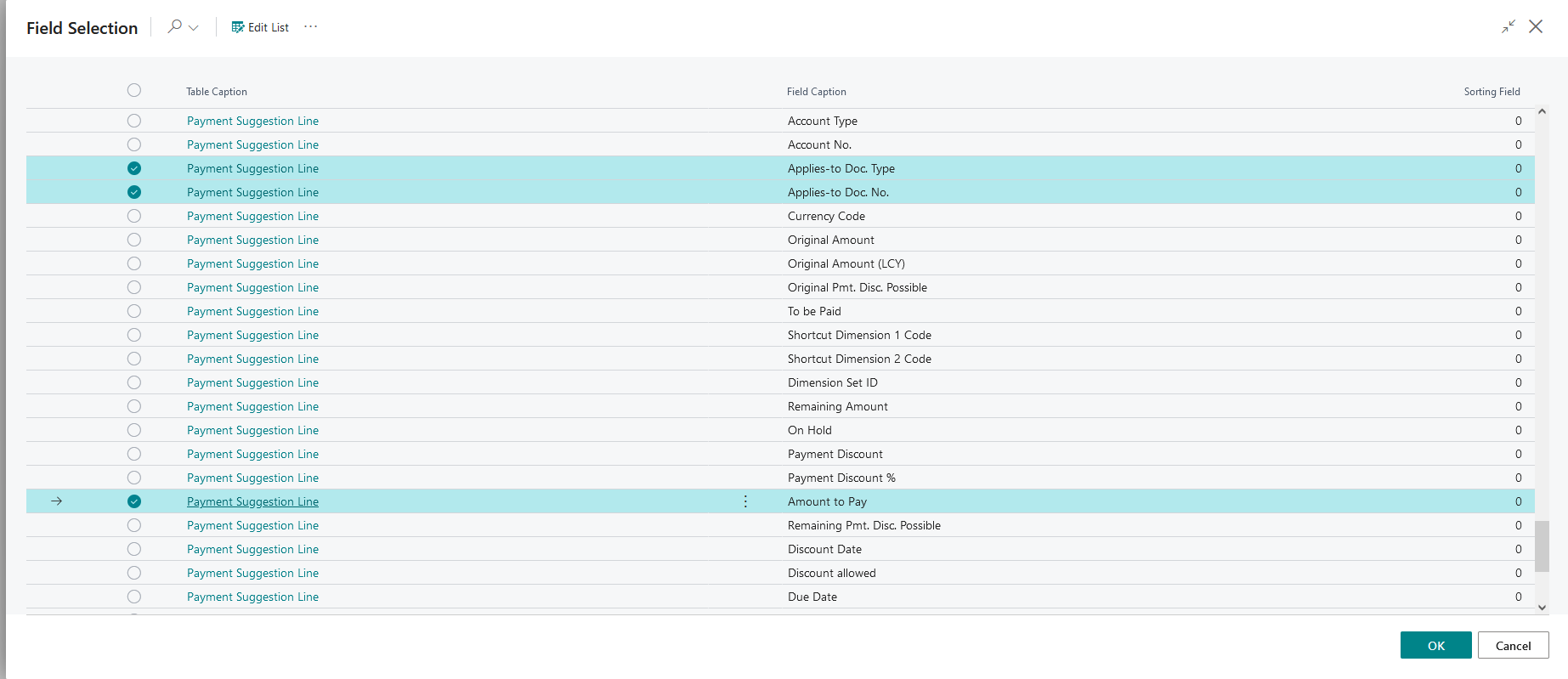
Select the data fields you want to include, such as document type, document number, and amount.
Click OK to insert the selected fields into the pattern.
Note
To apply a remittance template when suggesting payments, click Show More on the Suggest Vendor Payments page and locate the Remittance Information Template field.
The Remittance Information Pattern field controls how payment information is formatted in the communication to vendors. This pattern is applied across all transaction lines when the template is selected for the journal.
Additional options include:
- Sorting Field – defines the order in which payment lines are presented.
- Template Method: Line Break – adds a line break between data entries for better structure.
- Template Field Properties – customizes how each selected field is displayed. Click the three dots beside the pattern to open this page and refine your formatting.
Examples
You can use the Remittance Information Pattern field to create customized formats for presenting remittance details in communication.
In this example, the company is ABC Corporation and has the following vendor ledger entries to pay:
- Invoice 4711
- Invoice 4712
Pattern setup example 1
Pattern
<"Company Information"."Name"> <"Payment Suggestion Line"."Applies-to Doc. Type"> <"Payment Suggestion Line"."External Document No.">
Generated remittance information example 1
ABC Corporation,Invoice 4711, Invoice 4712
Pattern setup example 2
<"Company Information"."Name"> <"Payment Suggestion Line"."Applies-to Doc. Type"> <"Payment Suggestion Line"."External Document No.">
Generated remittance information example 2
ABC Corporation Invoice 4711, ABC Corporation Invoice 4712
Here, the company name is included with each invoice detail, resulting in a more detailed line-by-line format.
When you prepare remittance information for formats with strict character limits, such as SEPA, which allows one line of 140 characters, you need to use the available space efficiently and avoid repeating the company name. The company name should appear only once, so the remaining space is available for other relevant details.
To check a template's compatibility with bank limits
Before you use a template, check it against the line limits of your active bank payment methods, specifically the Remittance Advice Line Length and Max. No. of Remit. Adv. Lines fields. This helps you find templates that produce too many lines, or lines that are too long, before they reach a payment.
- Search () for and select Banking Templates.
- Select the template that you want to check.
- On the Banking Template page, on the action bar, click Bank Compatibility.
- On the Remittance Template Bank Compatibility Review page, review the template summary:
- Template Code - identifies the template, such as
DEFREMITTANCEINFORM. - Lines per Payment - shows how many remittance lines the template generates.
- Max. Line Length - shows the longest possible remittance line.
- Default Remittance Advice Information Type, Caption Language Code, and Bank System Code - show the settings used for the review.
- Template Code - identifies the template, such as
- The page also shows the bank, payment method, description, line limits, and compatibility result.
- Green – the template always fits within the bank limits.
- Light red – a line may exceed the bank's maximum length. Payments may still fit, or the remittance advice fallback applies.
- Bold red – the template always produces more lines than the bank allows.
- Select a bank payment method to view its compatibility details. For example, a template with two lines per payment exceeds a SEPA payment method that allows one remittance advice line.
Note
The Bank Compatibility page also shows which language is used to measure option captions and the default remittance advice setting. The check uses the default setting from Banking Export Setup. It does not check settings that differ on individual bank accounts.
For more information about what happens when a template does not fit a bank's limits during posting or export, see Viewing and rebuilding remittance information.