Working with the Payment Information Setup
The Payment Information Setup feature allows you to configure payment method settings for vendors, customers, and employees. If an account requires different configurations for a specific payment method, you can create multiple setups for the same account and payment method combination.
Use Payment Information Setup in scenarios where an account requires distinct export or remittance configurations for the same payment method. For example:
- A vendor accepts multiple payment methods, each requiring different reference lengths.
- A vendor uses different creditor numbers for the same account.
- A customer needs specific remittance information for credit memos only.
How it works
When you create or process documents, the system checks whether a matching Payment Information Setup record exists for the selected payment method and the associated account.
- If a matching setup is found, the system uses values from the setup for fields such as the payment reference template, the remittance template selections, the cost type, and the creditor number.
- If no matching setup exists, the system uses the standard values from the account card and the Banking Export Setup.
To access Payment Information Setup from a vendor, customer, or employee card
To access and edit the Payment Information Setup from the cards:
On the Vendor Card, Customer Card, Employee Card, click Related > Vendor/Customer/Employee > Payment Information Setup. Selecting the action opens a filtered list showing only setups for the active account. You can also access the page from the vendor, customer, and employee list pages.
To add a new setup, enter a new line. The system retrieves information from the Bank Account Export Setup and the account card and prefills fields where possible. You can now specify the variation. For example, if a vendor uses multiple creditor numbers, you can create an additional setup for the same Payment Method Code and enter the specific creditor number in the Creditor No. field. You can also assign a different Payment Reference Template when needed. The image illustrates this scenario by showing multiple setups for the same vendor and payment method, each with its own creditor number and template assigned.
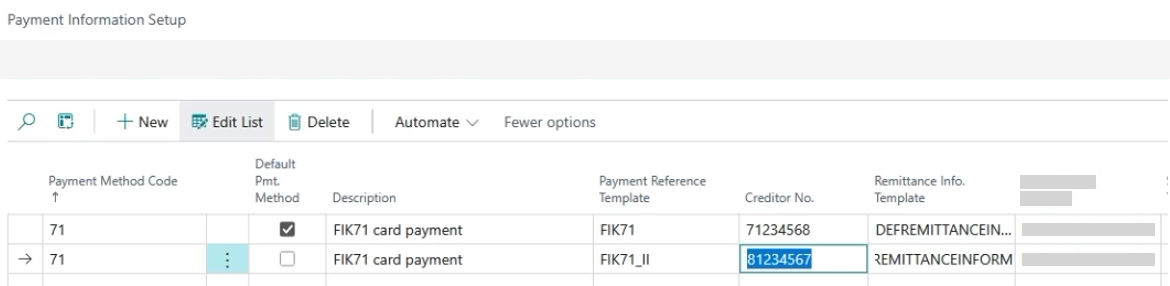
If multiple setup records exist for the same payment method, you can mark one record as the default in the Default Payment Method field. When no default is selected, the system automatically uses the first available setup. Once the setup is complete, the system uses that information each time you create an invoice using that payment method.
To access Payment Information Setup from a purchase invoice
To work with the Payment Information Setup from a purchase invoice:
- On the Purchase Invoice page, in the Invoice Details FastTab, the Payment Method Code field shows the default payment method.
- Select another payment method from the list, or click the three dots (AssistEdit) to open the Payment Information Setup page. You can now select or create the appropriate setup for the invoice.