Setting up payment links in emails
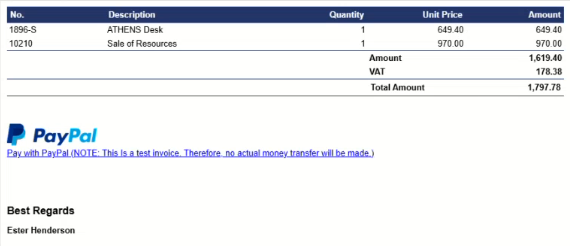
Some customers prefer to pay for goods and services using the accounts they have with payment services like PayPal, Visa, and Mastercard. With Continia Document Output, you can include links to such payment services in the sales documents that you send to your customers, enabling them to pay you directly from each individual sales document.
This article explains how you set up this feature in Document Output. The setup consists of two parts – creating a payment link template and linking it to an email template – as described in the sections below.
To create a payment link template
First, you must create a payment link template that can be linked to an email template. To create a payment link template, follow these steps:
- Search (
 ) for and select Payment Link Templates.
 - In the action bar, click New to open the Payment Link Template Card.
- On the General FastTab, in the Template ID field, enter an ID for the payment link template you're creating.
- In Payment Service No., select the three dots on the right to open the Payment Services page.
- In the list of available payment services, select the one you want to use for the payment link template, and then click OK to return to the Payment Link Template Card.
- Optional: In Template Name and Description, enter a name for and a description of the template.
- On the HTML Payment Link FastTab, click on the editor to place the cursor there.
- To insert payment link template merge fields, type % and select the merge field you want to add to the payment link template. Repeat this step for any additional merge fields you want to add.
Tip
Use the Payment Link Template Merge Fields FactBox on the right side of the screen as reference to see what merge fields are available for use in the selected payment service.
- In the editor toolbar, click the Codeview icon (</>) to edit the HTML styling. Thorough knowledge of HTML editing is required for this step.
- In the action bar, click Save > OK when you're done.
You've now created a payment link template for the selected payment service, and you're ready to link this payment link template to an email template, as described below.
To link a payment link template to an email template
In order to include a payment service link in the email body of invoice emails, you must link your newly created payment link template to an email template. To do so, follow these steps:
- Search () for and select Email Templates.
- Select the template that you want to add the payment link to, for example SALESINVOICE. The template must be linked to your invoice report. The Email Template Card opens.
- On the Email Template Line FastTab, select the line that you want to add the payment link to.
- On the Email Template Line FastTab, click Email Template > Edit HTML Template to open the Edit HTML Email Template page.
- On the HTML Template FastTab, click on the editor and place the cursor where you want to insert the payment service link.
- Type % and select the Payment Service Link merge item to add it to the email template.
- In the action bar, click Save Email Template when you're done.
The payment service link is now included in the email body when you send emails with sales documents that have a payment service made available.