Applying ledger entries manually
Manual application lets you apply bank statement lines to open ledger entries when automatic matching cannot identify the correct entries. It gives you control over which invoices, payments, or transactions to apply to each bank statement line.
Manual application is part of the Continia Banking Import module and is available in the Bank Account Reconciliation and Payment Reconciliation Journal pages. Manual applications are integrated with the Payment Application Review workflow and appear as proposals with Found By set to Manual Application.
To learn more about when to use manual application and the required setup, see Introducing manual application. Always run automatic matching first because it handles most scenarios efficiently. Use manual application only when automatic process cannot identify the correct entries.
You can manually apply ledger entries from several pages, depending on whether you work with bank statements or payment journals.
To apply a ledger entry manually
To apply a bank statement line to one open ledger entry:
- Search (
 ) for and select Bank Account Reconciliation or Payment Reconciliation Journal.
 - Select the bank statement line you want to apply, and click Home > Apply Entries.
- The Apply Ledger Entries page opens and shows all available open ledger entries. Review the transaction details in the header and the totals panel for the bank statement amount. Use Show actions to filter the list by account type if needed.
- Select the Applied checkbox for the ledger entry that you want to apply. The system calculates and populates the Applied Amount based on the remaining amount and the available payment discounts.
- Review the totals:
- Applied Amount - total amount being applied
- Applied Pmt. Discount - discount amount if within discount period
- Applied Pmt. Tolerance - tolerance amount if applicable
- Difference - remaining amount after application
- The page now closes and takes you back to the reconciliation. The system creates a payment application proposal with Found by set to Manual Application.
Note
The Applied Amount field is automatically calculated to match the ledger entry's remaining amount, taking payment discounts into account when applicable. You can manually override this amount if needed.
To apply multiple ledger entries
Use this process when a bank statement line covers multiple invoices or transactions.
To apply multiple ledger entries:
- Search () for and select Bank Account Reconciliation or Payment Reconciliation Journal.
- Select the bank statement line you want to apply, and click Home > Apply Entries.
- The Apply Ledger Entries page opens and shows all open ledger entries.
- Select the Applied checkbox for each ledger entry that you want to apply. The system suggests the amount for each entry. You can apply entries across different account types.
- Review the Difference field in the totals section.
- If the difference is zero, the applied entries match the bank statement amount.
- If a difference remains, you can:
- Apply additional ledger entries
- Adjust Applied Amount manually
- Use Transfer Difference to Journal to handle the remaining amount
For example, if you want to apply entries from different account types to a single bank statement line:
- Click Show Customer Ledger Entries to apply customer entries.
- Click Show Vendor Ledger Entries to apply vendor entries.
- Click Show All, review totals, and click Apply. Each applied entry creates a separate payment application proposal with Found by set to Manual Application.
Important
Make sure that the total applied amount does not exceed the bank statement line amount. The system validates all amounts before creating proposals.
To apply ledger entries manually from the Payment Application Review page
- Search () for and select Bank Account Reconciliation.
- Select the bank statement line you want to apply and click Home > Application Proposals.
- On the Payment Application Review page, click Home > Apply Entries.
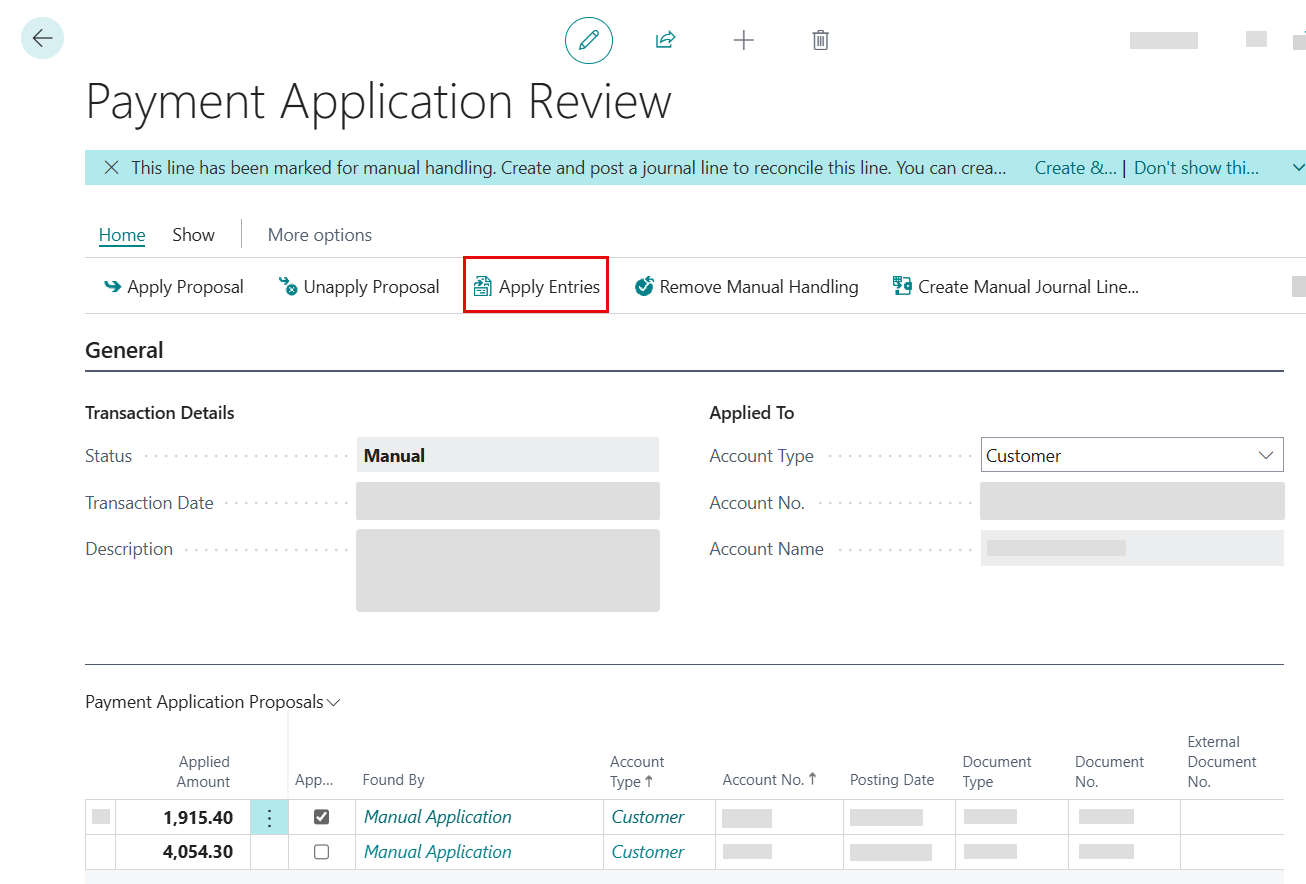
- On the Apply Ledger Entries page, select the entries you want from the list of open ledger entries. You can enter the amount manually or apply the entry directly. The system calculates the applied amount, and totals appear at the bottom of the page.
- Alternatively, from bank statement line, click Application Proposals to review existing proposals, then click Apply Entries to switch to manual application.
Note
On the Payment Application Review page, you can switch between payment application proposals and ledger entries by choosing Show Payment Application Proposals or Apply Entries.
To manually specify the applied amount
If you need to apply a specific amount instead of the suggested amount:
- Open Apply Ledger Entries for the bank statement line.
- Locate the ledger entry you want to apply.
- Enter the amount in the Applied Amount field. The system validates that the amount does not exceed the remaining amount and applies payment discounts when applicable.
- Select the Applied checkbox (if not already checked).
Important
The applied amount cannot be greater than the Remaining Amount or Remaining Amt. Incl. Discount. The system displays an error if the amount exceeds these limits.
To unapply a ledger entry
When you unapply a payment application, the system reverses the related changes. It deletes the payment application proposal, removes any associated journal lines in Bank Account Reconciliation, restores the bank statement line to its previous status, makes the ledger entry available for reapplication, and updates the reconciliation status based on the new difference.
Note
You can unapply only before reconciliation is posted. After posting, you must reverse the entries using standard Business Central processes.
To unapply a ledger entry from the Apply Ledger Entries page:
- Click Apply Entries for the bank statement line.
- Locate the applied entry (shown with Applied selected and Applied Amount populated) and do one of the following:
- Clear the Applied checkbox
- Set Applied Amount to zero
- Select the entry and click Unapply
To unapply a ledger entry from the Payment Application Review page:
- Open Application Proposals for the bank statement line.
- Locate the manually applied entry (shown with Found By = Manual Application).
- Select the entry and click Unapply Proposal. The system removes the payment application proposal and increases the bank statement line difference accordingly.
Related information
The Apply Ledger Entries page
Manual application examples
Manual application FAQ
Introducing manual application