Special character mapping
Banks may reject payment files that contain characters not supported by the payment format or by bank-specific validation rules. Some characters fall outside the allowed character set used in formats such as ISO 20022 and SEPA, even when company names and addresses are spelled correctly. When this happens, the payment file may fail validation and require manual corrections before you can complete the payment process.
To prevent these issues, Continia Banking provides a character validation and mapping mechanism. During payment export, the system validates all creditor and debtor information against the Extended SEPA Character Set (Unicode subset) provided by the EPC. If a character is outside this set, validation will fail, preventing the export until the issue is resolved.
Character mapping lets you define a replacement value that the system uses in the exported file instead.
Example
| Original | Replacement |
|---|---|
| à | a |
| Ä | AE |
How it works
Character mapping ensures that all text complies with bank-specific character restrictions. During export, the system replaces unsupported characters with valid alternatives to the payment file is accepted by the receiving bank.
By default, the extension includes a predefined set of mappings that cover all characters permitted under the general SEPA scheme.
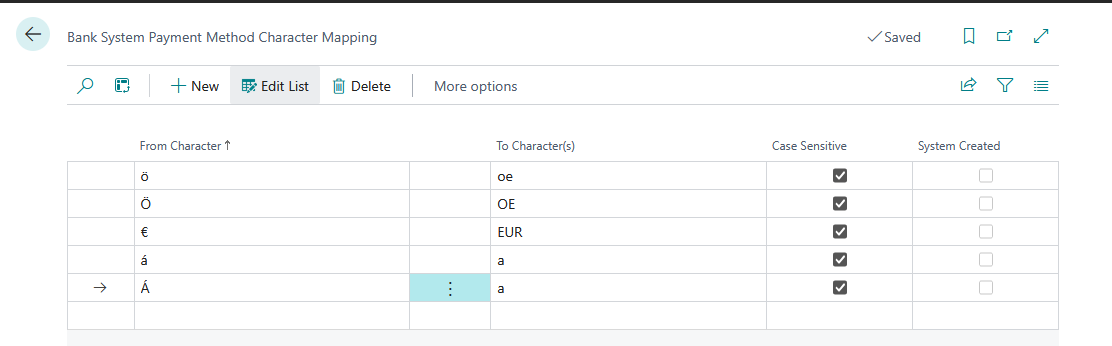
These predefined mappings are fixed and you cannot modify or delete them. If you need to override a predefined character mapping, you can define the same character at the payment-method level. This more specific configuration takes precedence.
Some banks may also reject special characters that SEPA officially allows. In these cases, you can add custom mappings and define how the system should transform those characters during export.
Character mapping is applied before validation starts, only during payment export, and affects all creditor/debtor text fields, bank information, remittance texts, and structured postal addresses.
The following fields are validated and transformed during export:
- Creditor Name, Creditor Name 2
- Creditor Address, Creditor Address 2
- Creditor City
- Creditor Bank Name
- Creditor Bank Address, Creditor Bank Address 2
- Creditor Bank City
- Debtor Name, Debtor Name 2
- Debtor Address, Debtor Address 2
- Debtor City
- Debtor Bank Name
- Remittance Advice Text
Master data in Business Central remains unchanged; only the exported file is affected.
To add a character
If a bank rejects a payment because of unsupported characters, you can add the character to the character mapping table and define the replacement value that should be used during export.
To access character mapping on the Bank System page
To configure default mappings that apply to all payment methods within the bank system:
- Search (
 ) for and select Bank Systems.
 - Open the bank system and on the action bar, click Related > Character Mapping.
- Now view the mappings or click New to add a new mapping.
Important
Predefined mappings are fixed and you cannot modify or delete them. If you want to override a predefined character, simply define the same character in the payment method. The character defined in the payment method will be used instead of the predefined one.
To access character mapping on the Bank System Payment Methods Character Mapping page
- Search () for and select Bank System Payment Methods Character Mapping.
- Now view the mappings or click New to add a new mapping.