Verifying bank accounts
This article explains how to enable bank account verification and verify one or more bank accounts. For conceptual information about bank account verification, see Understanding bank account verification.
To enable bank account verification
- Search (
 ) for and select Assisted Setup.
 - In the Continia Banking section, click Set up Security.
- Follow the guided steps to enable bank account verification.
Alternatively:
- Search () for Banking Export Setup.
- On the Approval FastTab, turn on Use Bank Account Verification.
Tip
You can choose to trust previously used banks. Selecting Yes assigns these accounts a Verified status automatically.
You can approve your own changes during batch verification only when:
- The user has the CTS CB SEC ADMIN permission set.
- Enable Security Admins to Approve Own Change is enabled.
To verify a bank account
To verify a bank account you need one of the following permission sets:
- CTS CB EXPORT VERIFY (inherits CTS CB BASE READ, CTS CB EXPORT READ, CTS CB SEC. READ)
- CTS CB SEC. ADMIN
To verify a bank account:
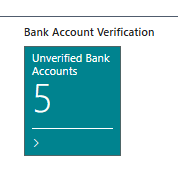
**Open the Vendor Bank Account Card, Customer Bank Account Card, or Employee Card. Alternatively, on the Role Center, click Unverified Bank Accounts.
Select the account you want to verify and on the action bar, click Verify.
Review key bank account details.
Select a verification method in Verification Method:
- Phone
- Other
Optionally, enter comments in the Comments field.
Click OK. The account is marked Verified and removed from the unverified list.
Note
If any of these fields change after verification, the account becomes Unverified: Bank Branch No., Bank Account No., IBAN, SWIFT Code, Transit No., Bank Clearing Code.
To verify multiple bank accounts (batch verification)
Batch verification is useful when enabling verification in an existing environment or when several accounts require validation. To run batch verification, ensure the following permissions and settings are configured:
- You have the CTS CB SEC ADMIN permission set.
- On the Approval User Setup page, the Approval Administrator and Banking Approval Administrator checkboxes are selected.
- The Enable Security Admins to Approve Own Change setting is turned on. You can enable this in the Set up Security assisted setup or on the Banking Export Setup page.
To verify multiple bank accounts:
- Open the Unverified Bank Acc. page from the Role Center tile or search.
- Select multiple accounts and on the action bar, click Verify.
- Review account information and complete verification.
All eligible accounts are updated to Verified.
To view verification status
- Open Payment Journals or Payment Approval Entries to check account status.
- New Bank Account - shows if previous payments used this account.
- Bank Account Verification Status – shows the current verification status.
To view verification history
- Open the relevant Vendor Bank Account Card, Customer Bank Account Card, or Employee Card.
- On the action bar, click Verification History.
- Review all changes, including field updates and the verifying user.
Related information
Understanding bank account verification
Excluding unverified bank accounts in suggested payments