Onboarding EBICS through BANKSapi
Continia Banking collaborates with BANKSapi to provide EBICS-based bank communication integrated with Microsoft Dynamics 365 Business Central. This setup allows you to securely download bank statements and initiate payments directly from Business Central.
Note
You can enable onboarding EBICS through BANKSapi from the Continia Feature Management page. A password is required, which you can request from Continia.
EBICS stands for Electronic Banking Internet Communication Standard and is a standard for electronic data exchange between corporate customers and banks. While the EBICS agreement is established directly with your bank, the technical communication between Business Central and the bank is handled through BANKSapi.
Tip
Continia Banking continuously expands support for banks and communication standards. EBICS connectivity is provided through BANKSapi for supported banks. For an overview of available banks, see the Banks overview article.
To prepare for EBICS onboarding through BANKSapi
Before you can use EBICS, complete the following steps:
Create an EBICS account with your bank and obtain credentials. Request the following details from your bank:
- Host-ID
- Host-URL (EBICS-URL)
- Partner-ID (Customer-ID)
- User-ID (Participant-ID) - ensure the User-ID has T-Berechtigung (Transport Signature) for outgoing payments.
Ensure the account includes the correct permissions:
- Preferred: C53/C52 for transaction retrieval. Alternative: STA/VMK
- Upload permissions:
AuthorizationLevel="T"for all supported payment types, including CCT, CIP, CTV, CIV, CDB, and CDD.
These permissions must be set per bank product.
Generate and submit the EBICS INI letter:
- Your bank will provide an EBICS INI letter (Initialization Letter).
- Sign the INI letter and submit it to your bank. This step is required to register your keys and establish the initial connection.
Bank configuration: after receiving the INI letter, your bank configures EBICS communication on their side.
Notification and activation: when configuration is complete, the bank notifies BANKSapi and activates the connection.
To set up EBICS communication through BANKSapi
Once the prerequisites are in place, you are ready to onboard EBICS through BANKSapi in Continia Banking.
To set up EBICS communication:
Search (
 ) for and select Bank Account Setup.
On the Bank Account Setup page, choose an existing bank account or create a new one.
In the Communication column, select Direct Communication. Then choose BANKSapi - EBICS as the provider and click Next.
The Set up BANKSapi page opens. Click Next .
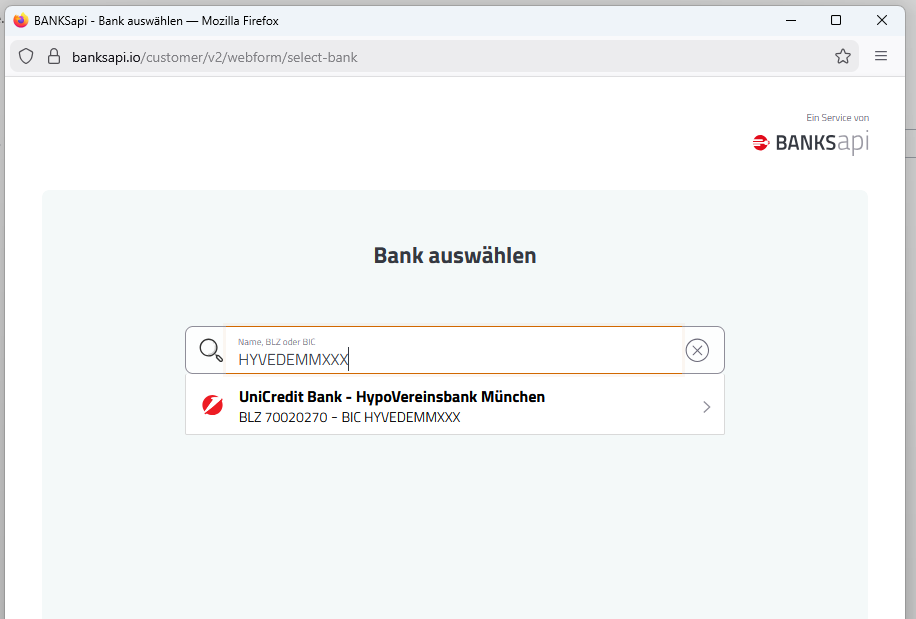
In the BANKSapi window, select your bank.
On the Zugangsdaten page, enter the EBICS credentials provided by your bank and click Next.

Tip
If the Host ID and Host URL fields are not auto-populated, verify the details you received when applying for your EBICS partner ID.
You will be prompted to download a PDF document called the Initialization Letter (Init Letter). Download the PDF and click Finish to complete the technical setup in Business Central.
Send the signed Init Letter to your bank as instructed in your EBICS agreement. The bank uses this document to validate and activate your EBICS keys.
To activate the connection and complete the setup
Once you receive confirmation from your bank, return to the Bank Account Setup wizard to establish the connection.
Tip
BANKSapi may take up to one business day to approve your signup and establish the connection for Continia Banking.
Search (
) for and select Bank Account Setup.On the Bank Account Setup page, locate the bank and confirm whether the status is set to Ready.
Click Next to retrieve the information from the BANKSapi and establish the connection.
Important
Payments initiated in Continia Banking must be approved externally. After exporting, payments are sent to the bank and require approval through your bank’s approval system or a third-party approval tool, depending on your setup.